Using and Enabling compatibility Mode
Have you upgraded to windows 2000 and found that you were unable to run some of your applications and games? **
Have you downgraded to Windows XP and had similar issues?
Well, good news. Windows 2000 (SP2 and greater) and Windows XP both have a feature called "Application Compatibility Mode". If you are running win2k, you will have to enable this feature. If you are running Windows XP, this feature is enabled already.
What this does is run the program in a pseudo-emulator, fooling the program into thinking its running in a previous version of windows, and also forcing win2k (or XP) to handle the program differently. For ease of documentation (and my general preference) the graphics employed in this document will be from a windows 2000 machine running SP2.
Steps to Enable compatibility Mode in Win2k:
Winxp users should skip to the next section.
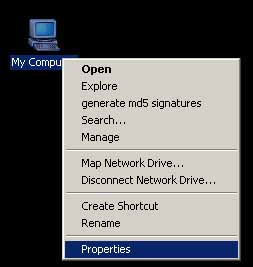
Make sure that you are running at least service pack 2. You can check by right clicking on the "My Computer" icon and selecting "Properties".
Then examine the window that appears and look for the service pack number.
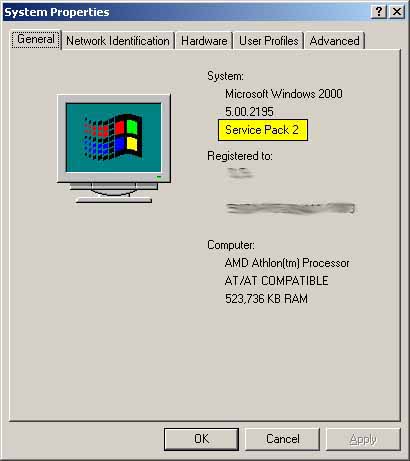
If it says service pack one, or if it doesn't say anything at all, you need to install service pack two or higher. You can find service packs at Windows Update.
Step Two:
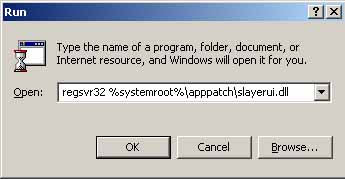
After confirming that at least Service Pack 2 is installed, go to your start menu and select "Run".
In the window that appears type (or copy to) the following line:
regsvr32 %systemroot%\apppatch\slayerui.dll
Step Three:
Answer "Yes" or "OK" to anything that pops up.
Steps to Using compatibility Mode:
Graphics and exact locations may vary.
Step One:
First, some general information about compatibility mode:
- Compatibility mode works on a shortcut to the program, but not the program executable itself. I dont know why this is... but if you want to run a program in compatibility mode you'll have to create a shortcut to it.
- A program running in compatibility mode becomes unaware of most other programs that are running. This also means that protections that are put in place on some programs to keep multiple instances from running are rendered useless... be careful about running more than one instance of a program in compatibility mode.
Step Two:
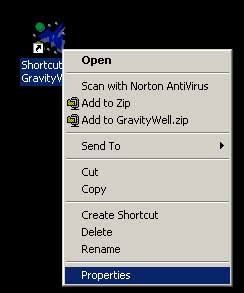
Find (or create) a shortcut to the program that you want to run in compatibility mode. After you have located one, right click on it and select "properties".
Step Three:
On the window that appears, select the "Compatibility" tab and then check the "Run in Compatibility Mode" checkbox.
Choose the OS that you believe is the most compatible with your program and then select "OK".
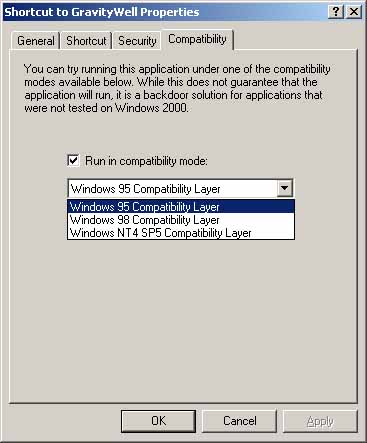
The next time you run the program, it will be operating in compatibility mode.
~fini~

** Please note that many win9x and NT programs run fine in win2k and XP, and that other factors of the computers setup and config affect how a program runs almost as much as the Operating System used.
Sources Used for this Document Include:
Microsoft Knowledge Base Article - Q279792